


Showing posts with label iOS-app. Show all posts
Showing posts with label iOS-app. Show all posts
Friday, 16 January 2015

Were you ever eager to know the saved passwords in your iOS device? Sometimes you might also want to know the passwords that your parents or friends or relatives entered in your device but didn't told you the password. Today in this post, I will be discussing how you can see those passwords.
Well due to security issues, the passwords are kept on your phone in a safe and secure place that is not accessible through regular means on the phone. However, if your iOS device is JAILBROKEN then you can easily access the list of the saved Wifi Passwords through an app called 'WiFi Passwords' developed by Malcolm Hall.
Lets get started...
For this process you must have Jailbroken device. If your device is not, then this won't be helpful for you.
Step 1: Go to Cydia and tap on Search. Type 'WiFi Passwords'.
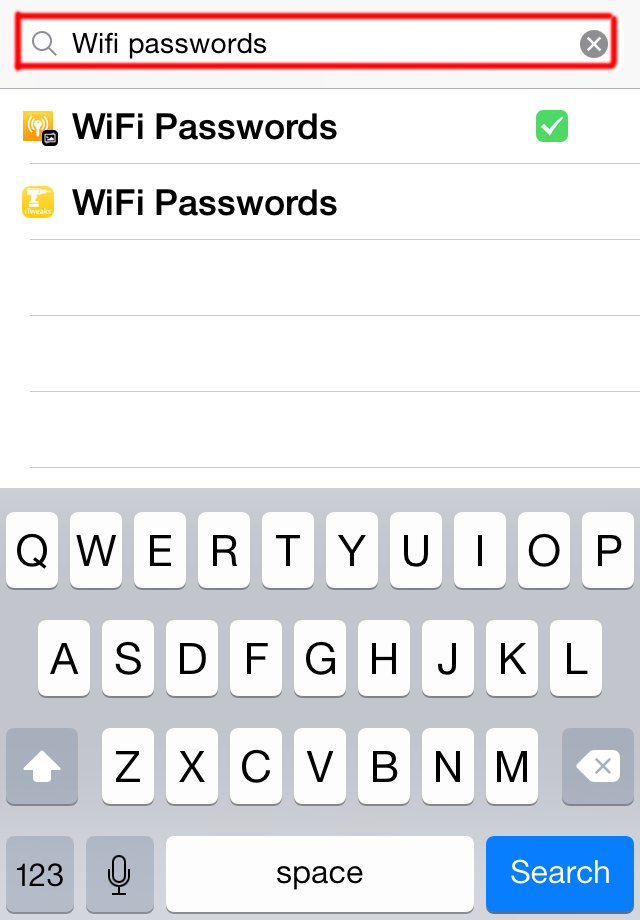

It will show you the results. Here, it showed only two results. Select any one.Current version is 2.0.3.
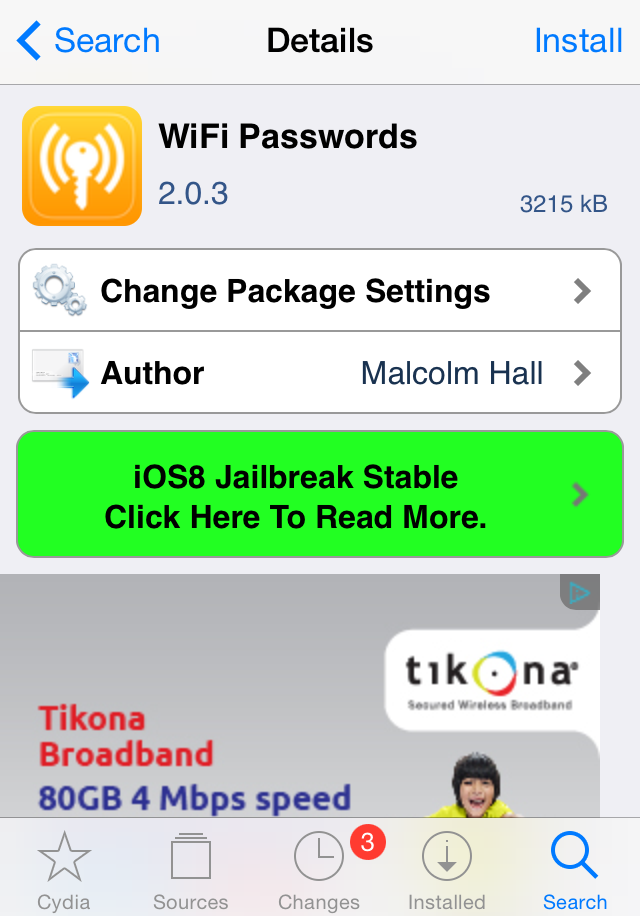
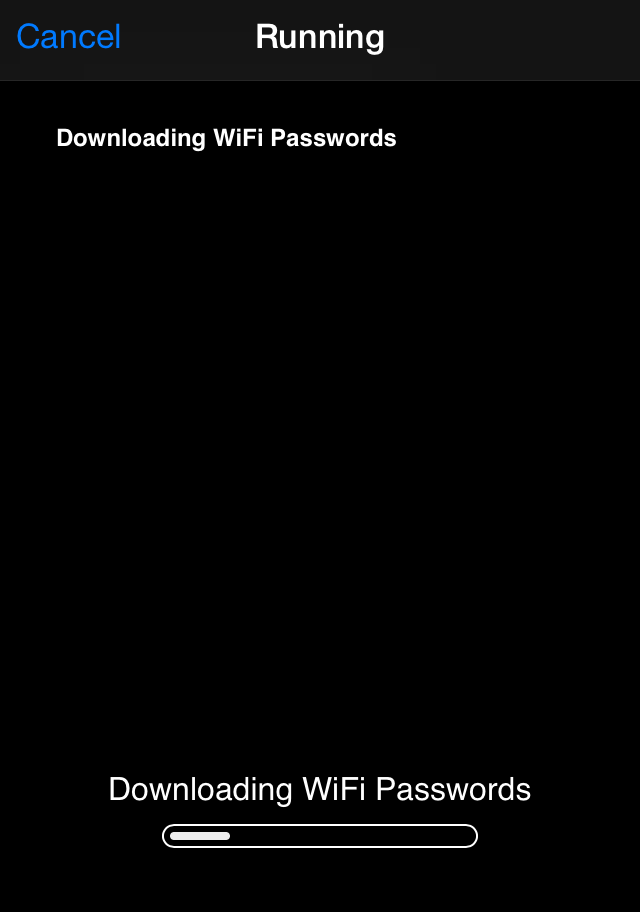
Step 2: Tap on Install and Confirm it. The filesize is approx 800kb.


If you have any queries or suggestions for you, please forward them without any hesitation. We will be grateful towards you. You can also request us to write articles on any specific topics. We will be happy to serve you.
Saturday, 20 December 2014

Smartphones are really cheap these days. Many of us own android phones. Some of you might own more than one smartphones. To manage your smartphones, there is official software from the manufacturer company. For example, using Nokia PC suite you can manage your Windows phones, using Samsung Kies you can adjust the settings of your samsung device and using iTunes your can easily backup, restore your settings of your iOS device. There is one limitation of these software i.e you can manage only one device at a time. I personally own Samsung Tab 3 (android) and iPhone 4S (iOS). To manage them, I used to use Samsung Kies and iTunes separately. So, I was searching for one specific software that would allow me to manage all my devices at a same time and found an awesome software called "MOBOROBO". I can easily manage my both iOS and android device at same time. Besides, this faciliates to manage multiple devices even more than two at same time.
In this post, I will be sharing my knowledge regarding this software how you can easily manage your device.
Managing your Android Device
At first download this software: Moborobo. It is an open source software. After the download is finished, install the software and launch it.
Here's the user interface of this software.

In the top, you can see Home, Data, Apps, Images, Music, Videos and Themes menu. In the center, you can see your connected device and list of operations you can perform.
In the top right postion, you can see some icons using which you can manage the settings of this software. You can change the language from English into other 7 different languages as shown below:

In the same icon, you can manage the setting of your device too. Click on Setting to explore more.

You can specify the locations to store the downloaded apps, wallpapers, ringtones, music, videos and themes.

Using App menu inside this setting, you can change the default installation of apps to SD card, filter the duplicated apps, and manage export setting.

Review the remaining Setting menu such as App installer, Mobo Portal and other settings yourself.
Now lets to return to 'Home' menu.
Here you can see the detail information of your connected device by clicking on the small icon 'i' as shown below:

You can also check your SD card statistics on clicking on SD Card.

The File Manager option, allow you to quickly access the files and manage them easily.

You can also backup your device Contacts, Messages, Call logs, Images, Wallpaper, Theme, Music and Apps and even Restore them whenever necessary.

When you connect android device, you will also get an option of 'Phone Cleanup'. Using this option you can easily clean the temporary files and improve the device performance.

In the bottom right, you will see some icons. By clicking on them, you can access your contacts, messages, apps, images, music and video.

Now, lets discuss about 'Data' menu.
In this section, you review your contact lists, messages and call logs.You can edit and even add contacts from this menu.

Check the remaining portion yourself. It's very simple.
Now, it's turn for 'Apps' menu.
This is the most important feature of this software. You can manage your installed apps, system apps and even search, install and updates the application on your device. It also facilates to move your installed apps from Device to SD card or vice versa. Here's the perview.

If you have internet connectivity, then you can see the trending apps, download them and install them on your device.

If you search for any application, it also provides you with some suggestions at the bottom. You can see the preview below:

While downloading the applications, you can check the status by clicking on the icon highlighted as shown below:

Now, lets discuss about 'Images' Menu. In this section you can view your device images and even download wallpapers from the store.

In 'Music' section, you can manage your ringtones and audio files. It also shows trending music which you can play and download.

In 'Videos' menu, you can view different trending videos online and can even download them.

'Themes' menu allows you to download the themes for your devices. It shows the featured themes.

Managing your iOS device
As I mentioned before, this software works smoothly with android and iOS. You can easily manage your iOS device like that of Android device.
Here's the user interface of Moborobo after you connect your iOS device.

You can view your device information as mentioned above in Android.

There's one difference. You won't get 'Phone Cleanup' option. Rest is similar. You can backup and restore your important contacts, apps, messages, images and music.


Using File manager, you can see the contents of your device, and access files of 'File Sharing Apps'.

The rest is similar Android in Data, Apps, Images, Music, Videos and Themes menu.
You can easily download and updates your apps, add and delete music files, add, edit and delete your contacts.
Note: iOS device has certain restriction in comparison to Android. You cannot apply themes. You might not easily create folders.
I mentioned earlier that you can switched between your devices. You can do as shown below:

Conclusion: Moborobo is really awesome software. Using it, you can easily manage your multiple device at the same time. It's far better than Samsung Kies and iTunes in my opinion. When I connected my Nokia Lumia 920 (Windows), it couldn't recognize it.
Was this post helpful for you? If yes, please let me know through your valuable comments below.
If you have any queries or suggestions for you, please forward them without any hesitation. We will be grateful towards you. You can also request us to write articles on any specific topics. We will be happy to serve you.
Tuesday, 9 December 2014
 There are many apps that provide free calls by offering free credits. However, after the free credits are over you need to purchase the credits which is costly and even you cannot earn more free credits. There are also some apps such as Viber, Skype that allows unlimited free calls and texting when both registered users are available online. Is there any app that allows free calls even though the person whom you are trying to call is offline or not registered? If you are searching for such app then you are at the right place. Today in this post I will be discussing about an app called "Dingtone".
Dingtone is a mobile application for available for both iOS and Android platform. Using the app, you can make unlimited free phone calls, send free text messages, and instantly share pictures, videos, and your location with friends, family members and other Dingtone users. Besides, you can also make calls and texts to other non-registered Dingtone users using the free credits.
How to make free call to non-registered users?
For this purpose you should have free credits. The call rates varies from country to country. For example, the call rate for calling United States is 1 credits/min with extra 1 credit connection fee. Similarly for calling India, the call rate is 1.85 credits/min with extra 1 credit connection fee. The call rate also varies in Landline, Mobile and Mobile-Privately Run within a country.
You can check call rates in app : More > Calling Rates > Select Desired Country
How to earn Credits?
Earning credits is quite easier but it can be tedious task for many. You need to complete some offers and will get free credits. Usually, you will get credits by installing the apps and running them once.

 Besides, you can daily check in or watch videos to earn free credits.
Dingtone also allow you to earn 20 Credits per referral to your friends whom you can either invite by sms, email or through Facebook.
How to make free Call?
After you have checked the call rates and have enough credits, go the Call Menu (situated at the bottom), select the country and dial the number and your call will be connected.
Remember, you need WiFi, 3G/4G data network.


The call quality depends upon your connection speed. I have used it on 256 kbps connection, the call quality was really good and clear enough.
Some Extra Features
2. You can switch between your Caller ID.

3. Setup your voice mails, block unwanted calls, call forwarding and Voicemail and auto reply.

3. Record your calls, check your data usage
4. Link another phone number and email address

5. Protect your privacy via app passcode
6. Account Deactivation feature
7. Gift Credits or Receive Credits from your friends

8. Buy credits at cheap rates if your free credits are over.

For more details: Visit Official Site
Watch Dingtone official Video
Overall this app is best for making free calls and text with free credits as you get chances to earn free credits from time to time. So, I would like you to test this app and submit your own feedback. Further, if you have any queries, please feel free to contact us.
Subscribe to:
Posts (Atom)
Visitors

Popular Posts
-
 Hey friends , if you interested to learn C/C++ in you android device then CppDroid can help you. By using this app you can easily write...
-
 In the recent times,backing up the files online is the latest way to store the personal files and folders.Files stored in cloud are more se...
-
 Are you guys looking for PC games? As it is known to you that in today’s world 3D gaming has earned much popularity in different platfo...
-
 At present, it's better to learn different languages so that it can be helpful for you. Besides, your mother tongue you must be much...
-
 There are many apps that provide free calls by offering free credits. However, after the free credits are over you need to purchase the cr...
-
 Hey Guys! Welcome to the new tutorial. In this , you will learn to create a password protected software without any software. Most of us, ...
-
 If you own an iOS device, then you must know that by default you have to set 4 digit numeric passcode. But there is also a feature availab...
-
 Were you ever eager to know the saved passwords in your iOS device ? Sometimes you might also want to know the passwords that your pare...
-
 Microsoft's Windows 7 ,released on July 22,2009, was a great success and was largely accepted by its user worldwide. After few years, ...
-
 I love the way the Windows Start Menu allow me to access the applications easily in My PC. Have you ever wish for search Start Menu for you...