


Showing posts with label iOS-Tips-N-Tricks. Show all posts
Showing posts with label iOS-Tips-N-Tricks. Show all posts
Monday, 1 June 2015

Do you own an Apple devices? If yes, then this article will be really fruitful for you. As we know, without Apple ID, you cannot donwload apps from appstore. Creating Apple ID is compulsory for you to fully enjoy for iOS device.
If you had attempted to make Apple ID earlier then you might have been asked to enter your credit card details. I'm sure not all of us have Visa Card. However, making apple is a lot more easier without using your credit card details but you have to follow certain steps as mentioned below.
Process:
Step 1: Open iTunes and go to Appstore.

Step 2: Select any free app to download(not Paid).
Step 3: Click on Get.

A dialog box will appear. Since, you don't have Apple ID, you cannot login so you have to create one.

Step 4: Click on Create Apple ID.
Step 5: Now, a new link will appear as shown below. Click on Continue.

Step 6: Read the License Agreement and Agree the terms to proceed ahead.

Step 7: Fill up the necessary details and click on Continue.

You will directed to the payment info. Most of us get strucked here.
Did you noticed the NONE. This option is only since you tried to download free app. If you had created directly then you won't get this NONE option.
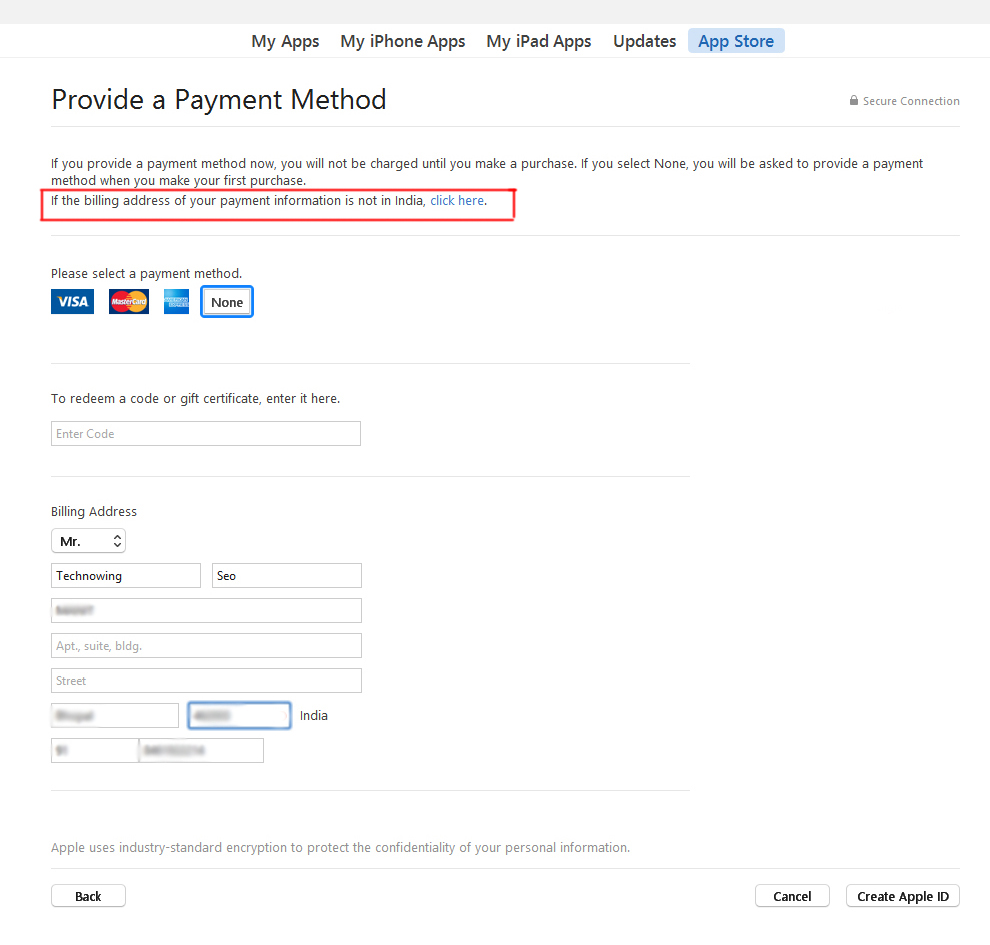
Step 8: Fill up the necessary details. Don't worry it won't ask you to enter your credit card details. Finally click on Continue.
Remember, you can also change your country.
Step 9: Go to your inbox and validate your email address.

This is the most easiest way to create free Apple ID. I did this in iTunes but you can also do this from your phone directly. Always remember to start the process by trying to download Free App from Appstore.
If you got any problems, please let us know through comments. We are always there to help you.
Friday, 16 January 2015

Were you ever eager to know the saved passwords in your iOS device? Sometimes you might also want to know the passwords that your parents or friends or relatives entered in your device but didn't told you the password. Today in this post, I will be discussing how you can see those passwords.
Well due to security issues, the passwords are kept on your phone in a safe and secure place that is not accessible through regular means on the phone. However, if your iOS device is JAILBROKEN then you can easily access the list of the saved Wifi Passwords through an app called 'WiFi Passwords' developed by Malcolm Hall.
Lets get started...
For this process you must have Jailbroken device. If your device is not, then this won't be helpful for you.
Step 1: Go to Cydia and tap on Search. Type 'WiFi Passwords'.
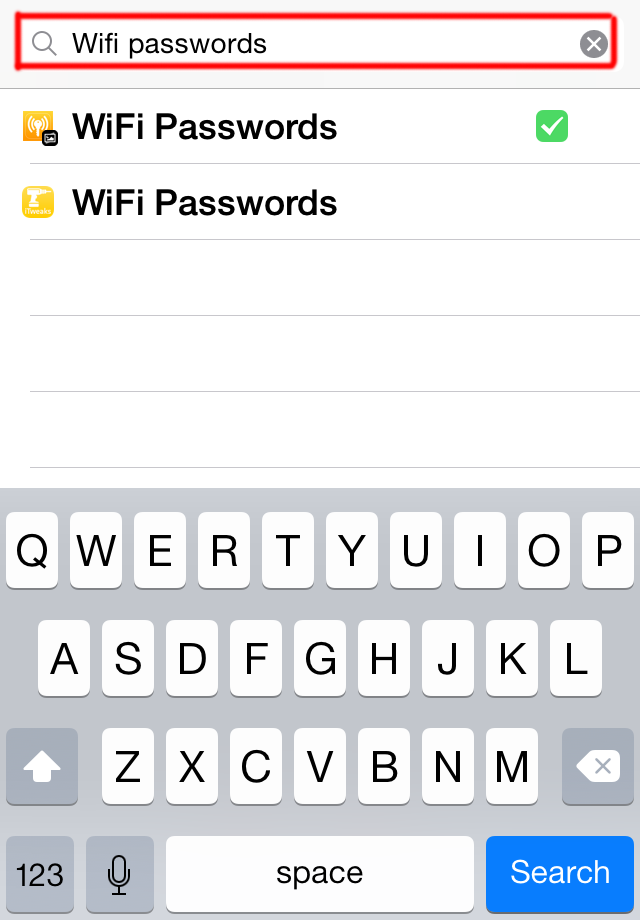

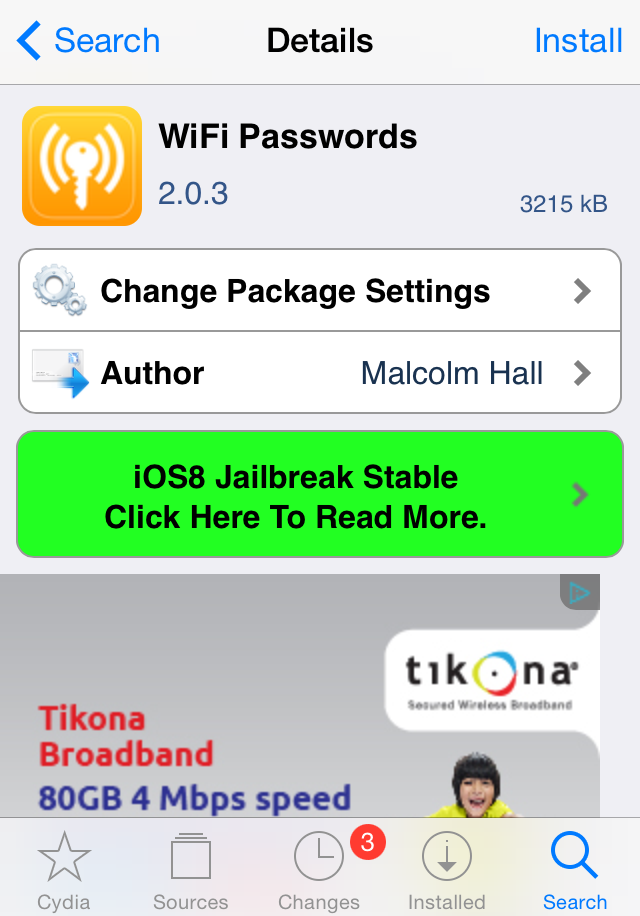
It will show you the results. Here, it showed only two results. Select any one.Current version is 2.0.3.
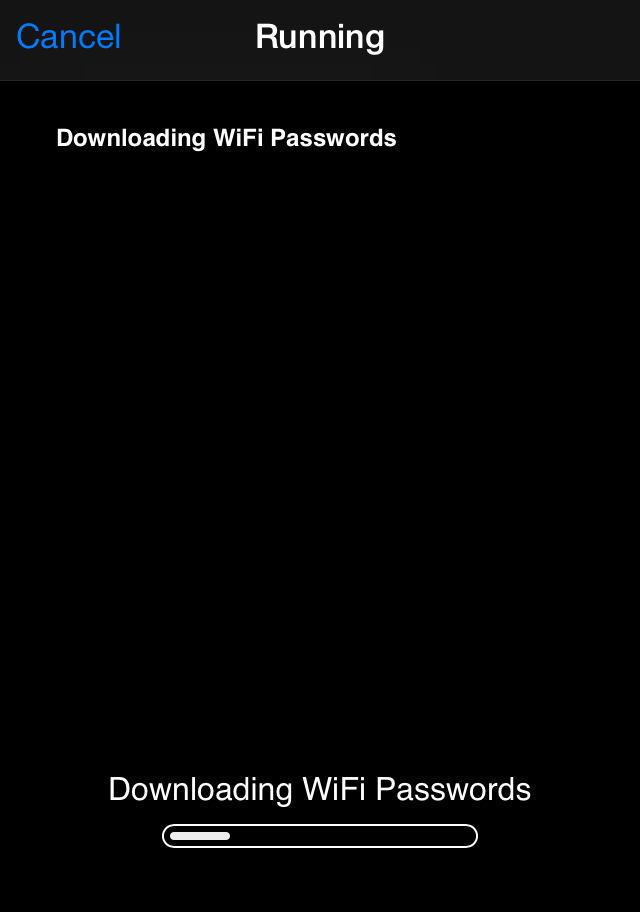
Step 2: Tap on Install and Confirm it. The filesize is approx 800kb.


If you have any queries or suggestions for you, please forward them without any hesitation. We will be grateful towards you. You can also request us to write articles on any specific topics. We will be happy to serve you.
Friday, 19 December 2014
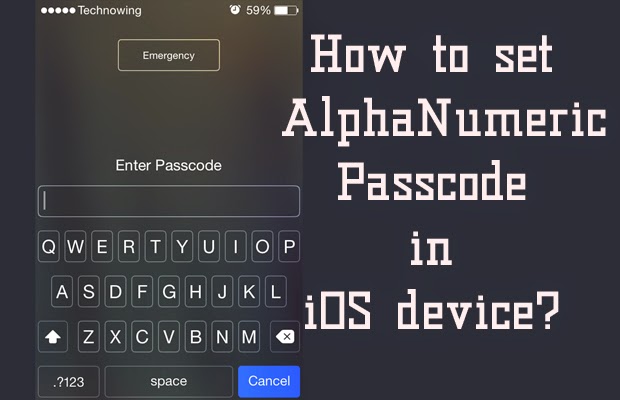 If you own an iOS device, then you must know that by default you have to set 4 digit numeric passcode. But there is also a feature available for you to set alpha-numeric passcode about which many of us are unaware. For this, you don't need any kind of applications and there's no need to jailbreak your device. In this post, I will show how you can easily set up alphanumeric passcode in just 4 easy steps.
Lets get started..
Process:
I have shown you a preview of 4 digit passcode on my iOS device.

Step 1: At first, go to Setting and select Passcode as shown below. (My iOS version is 7.1.2. In order version of iOS below 7, you can find Passcode menu inside General.)

Step 2: There you can see 'Simple Passcode' enabled. Make sure you Turn it Off.

Step 3: Then you are prompted to enter your old 4 digit passcode. Enter it.

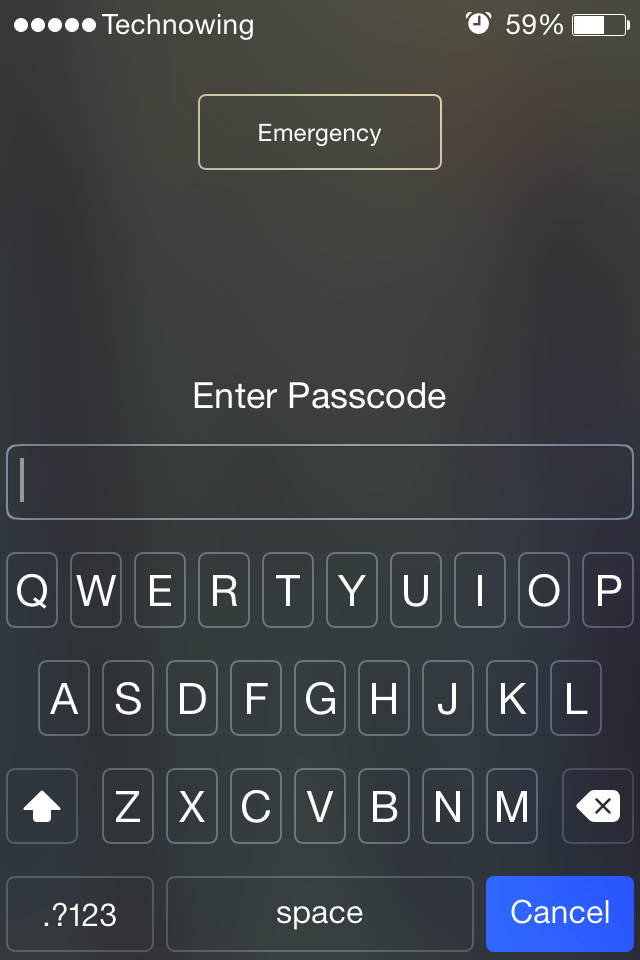
Step 4: Now you can set alpha-numeric passcode according to your wish. When you click on highlighted '.?123', you will get an option to enter numbers. You have to enter same passcode twice and you're done.

Here's the preview of lock screen menu.
In future, I will write an article on how you can reset your iOS forgotten passcode.
Was this post helpful for you? Please share your views with us.
If you have any queries or suggestions for us, please forward them to us. If you find your site worthy, subscribe us and share it with your friends.
Subscribe to:
Posts (Atom)
Visitors

Popular Posts
-
 Hey friends , if you interested to learn C/C++ in you android device then CppDroid can help you. By using this app you can easily write...
 -
 In the recent times,backing up the files online is the latest way to store the personal files and folders.Files stored in cloud are more se...
 -
 Are you guys looking for PC games? As it is known to you that in today’s world 3D gaming has earned much popularity in different platfo...
 -
 At present, it's better to learn different languages so that it can be helpful for you. Besides, your mother tongue you must be much...
 -
 There are many apps that provide free calls by offering free credits. However, after the free credits are over you need to purchase the cr...
 -
 Hey Guys! Welcome to the new tutorial. In this , you will learn to create a password protected software without any software. Most of us, ...
 -
 If you own an iOS device, then you must know that by default you have to set 4 digit numeric passcode. But there is also a feature availab...
 -
 Were you ever eager to know the saved passwords in your iOS device ? Sometimes you might also want to know the passwords that your pare...
 -
 Microsoft's Windows 7 ,released on July 22,2009, was a great success and was largely accepted by its user worldwide. After few years, ...
 -
 I love the way the Windows Start Menu allow me to access the applications easily in My PC. Have you ever wish for search Start Menu for you...